Posts

Showing posts with the label excel file repair

Three Most Common Excel Issues and their Solutions

Image
Summary: In this article, I will discuss three MS Excel errors and their solutions by the smart way. These are very simple tips that explain how a user can leverage Excel problems. MS Excel is a useful application for the home user as well as the business user. It plays an important role differently on different sectors. A school teacher can use it to maintain student records where a data analyst can use the function and formulas to find the appropriate output. Three common errors that I will describe in this blog are: Excel file is corrupted and cannot be opened Microsoft Excel is not responding Unable to save Excel file (User issue) These errors can occur in MS Excel 2016, 2013,2010, 2007, etc. Let’s discuss them. Excel file is corrupted and cannot be opened This error message also Occurs in so many Excel version including MS Excel 2016. Users complain that when they update their MS Office (example: from 2007 to 2010) then got this error. User can fix this error by ...
How to fix MS Excel blank worksheet issue?

Image
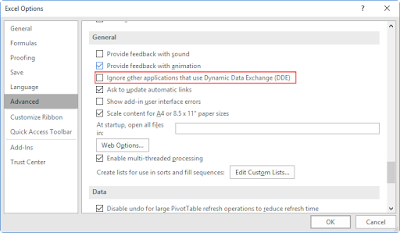
Blank Excel file problem is a very irritating situation. In this case, you will be unable to see the content of the file. Here, I am going to share some solutions to fix this issue. Before proceeding any methods, try Open and Repair option to fix the issue. when open and repair option not works then, try these options: Copy the file from one location to another location and try to open it.  Rename the file or change the file extension.  If you are not able to fix the issue by these solutions, then try them: Ignore Dynamic Data Exchange (DDE): Some applications can interrupt MS Excel to open the worksheet or Excel shows blank worksheet. With DDE option, Excel can share the information with other applications.  To stop this process, go to File->Options->Advanced. Check the General section and check the “ Ignore other applications that use Dynamic Data Exchange (DDE) ” and click OK to save the setting. Check Add-Ins Setting: Turn-off the COM Add-Ins ...

How to Repair a Corrupt Excel file in 5 simple steps

Image
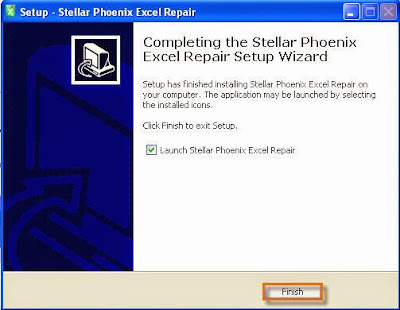
It often happens that an Excel file gets corrupt due to numerous reasons: power failure, application error, virus, and many more. If it has happened to you then hang on! You can still recover your million dollar data from corrupt Excel file. Here is the best method that will help you in recovery of your data from corrupt Excel file. You need to follow just 5 simple steps to perform the recovery of data: 1 . Download & Install Stellar Repair for Excel  on the system where the corrupt file is placed. Follow the simple software instruction to complete the installation process. 2 . Software will automatic launch on your system after finishing the installation process. Now click on the ‘Select file’ button to select the corrupted Excel file. After selecting the corrupt file; click on the ‘Scan’ button to see the preview of your data. Additionally you can use ‘Search File(s)’ option to search the all Excel files; if you don’t remember or sure about the location of corrupt fi...

Easily Repairs Corrupt Excel File

Image
Excel file repair is a very hot topic. What do you do if your very important excel file has been corrupt or damaged that was saved as xls or xlsx file? You don’t have backup of that important file, which you should have or backup has been lost/corrupt too. How do you re-gain the data of Excel file? In this article I will try to list all the possible solution to fix this unpleasant task.     Don’t worry! It can happen with anyone. I will share 5 methods for recovery of data from corrupt or damaged excel file. Success is not guarantee, you may loss the formatting. But I will guarantee that you will be able to save the text data after performing any of the methods.  There are five main reasons for Excel file corruption and the reasons are: Faulty Hardware: In a research, it has been found that 92% of Excel file corrupt occur due to hardware problem. Hardware problem can be overheating, device conflict, faulty component etc. If you found any of the above problems ...

How to fix excel file corruption error messages

Excel File corruption errors occur when excel files (xls, xlsx) are missing or corrupted. These errors occur in any case suppose you are trying to open your file or want to edit file or many more. Some most common file corruption error messages are: "Excel unable to read file.." “Filename is not valid.” "This file is not in a recognizable format" "abc.xls file cannot be accessed. The file may be read-only" “The File is Corrupt and Cannot be Opened” “Excel found unreadable content in (filename)” “Microsoft Excel has encountered a problem and needs to close.” When these messages occur then you can’t perform any task on the file or there is also possibility that the file is unable to open due to these error messages.  Why these errors occur? There are number of reasons behind excel file corruption errors but Most of excel file corruption errors are caused by virus attack, software malfunctioning, Power Outages, sudden system shutdown e...