Posts

How to Troubleshoot Damaged QuickBooks Data
Image
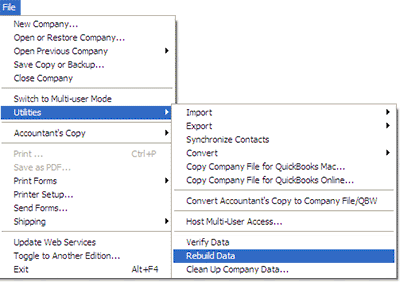
QuickBooks is an accounting software. In other words, you can say it is a money management software that uses the file of .qbw file extension to store data. This blog outlines the solution to repair damaged QuickBooks data file. With the help of these troubleshooting steps you will be able to fix the problem. Restore from the backup: Yes, your backup can be superhero here and restore your data. If you have clean and updated backup then it is the time to use it.  Note: Make sure your backup is latest otherwise you will lose the recent change or update of your data. By creating new company file: You can replace your old company file with the new one. You can export the information such as; customer, vendors, account chart, etc. into newly created file. This method will help to avoid the future problem and improves the performance. Read these points related to troubleshooting Open the computer where actual company data file is stored Do not perform rebuild act...

Three Most Common Excel Issues and their Solutions

Image
Summary: In this article, I will discuss three MS Excel errors and their solutions by the smart way. These are very simple tips that explain how a user can leverage Excel problems. MS Excel is a useful application for the home user as well as the business user. It plays an important role differently on different sectors. A school teacher can use it to maintain student records where a data analyst can use the function and formulas to find the appropriate output. Three common errors that I will describe in this blog are: Excel file is corrupted and cannot be opened Microsoft Excel is not responding Unable to save Excel file (User issue) These errors can occur in MS Excel 2016, 2013,2010, 2007, etc. Let’s discuss them. Excel file is corrupted and cannot be opened This error message also Occurs in so many Excel version including MS Excel 2016. Users complain that when they update their MS Office (example: from 2007 to 2010) then got this error. User can fix this error by ...

How to Fix MS Word Unreadable Content Error?

Image
I read a question on a forum. A user has a word document with some unreadable content. He shared his document on google drive and given that link on the question. I downloaded that document and tried to check it. I opened the document and got the following error message: I read out the details section and click on the OK button. Again I got an error message from Microsoft Word “Word found unreadable content in Your_filename. Do you want to recover the contents of this document? If you trust the source of this document, click Yes”.  I clicked on Yes button to open the file.  The Word document has 20 pages and 90% content was in the readable form. Some mathematical equations were in unreadable form and to repair them I perform the following methods: Open file using Zoho Writer: Zoho writer is fully featured word processing program on the cloud. I logged in from Google drive account and tried to open that shared file using Zoho writer and click Continue butt...

How to fix MS Excel blank worksheet issue?

Image
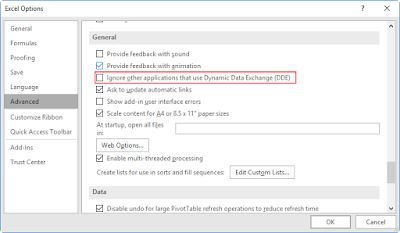
Blank Excel file problem is a very irritating situation. In this case, you will be unable to see the content of the file. Here, I am going to share some solutions to fix this issue. Before proceeding any methods, try Open and Repair option to fix the issue. when open and repair option not works then, try these options: Copy the file from one location to another location and try to open it.  Rename the file or change the file extension.  If you are not able to fix the issue by these solutions, then try them: Ignore Dynamic Data Exchange (DDE): Some applications can interrupt MS Excel to open the worksheet or Excel shows blank worksheet. With DDE option, Excel can share the information with other applications.  To stop this process, go to File->Options->Advanced. Check the General section and check the “ Ignore other applications that use Dynamic Data Exchange (DDE) ” and click OK to save the setting. Check Add-Ins Setting: Turn-off the COM Add-Ins ...

Simple Tips to Fix Bookmark Not Defined Error

Image
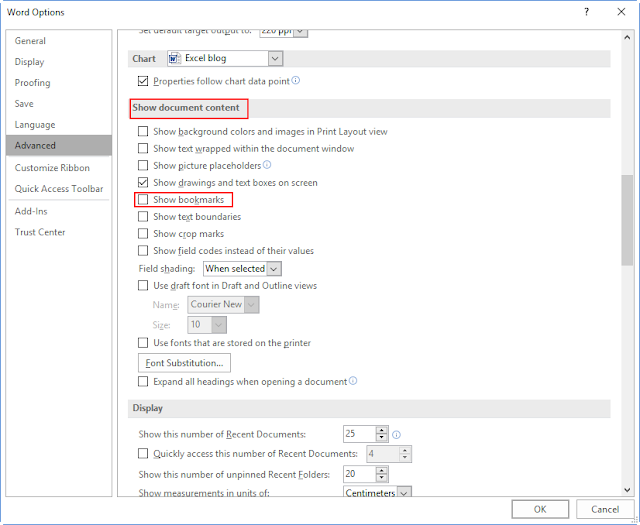
Bookmark not define error occurs in the large size word document. The main reason of this error is broken link to into the bookmark. It is also related to TOC (Table of Content) and some user complaint this error during updating of TOC. The complete error message is: “ Error! Bookmark Not Defined. ” or “ Error! Reference source not found. ” Important Tip: If you get the same error then press Ctrl+Z to undo action. It works instantly on the document but not worked when you perform any other operations and save the document. Let’s see some reliable solution to fix it! Solution 1: If you are trying to merge the content into a new document, then unlink them before doing it. This process converts TOC field to actual text and tries to prevent it from any update. If you want to update the TOC, you must reinsert it. Steps to unlink the table of contents: Place insertion point within the table of contents. Press ctrl+shift+f9 (for Windows), or the command key+shift+f9 (for...

5 Powerful Solutions to Fix QuickBooks Error 6177

Image
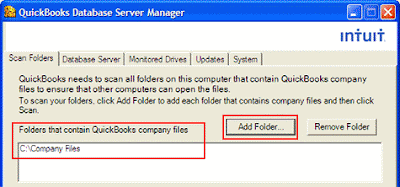
Error 6177 occurs when QuickBooks software does not recognise the path to open the company file. This is the primary reason but, other reasons can also be cause for this error. Let’s discuss some important solution to fix this error. Solution 1: Move your company file to hard-drive Change the location of your company file from a server or any other drive to C drive. Now open the file from there. Create a portable file and save the company file in local drive. Close the company file. Now, restore your portable file from C drive and save to server. Select company file and open it from server. 5-powerful-solutions-to-fix-quickbook Solution 2: Update the QuickBooks version Visit the product page of QuickBooks and update with the latest release. Always update all the updates: manual & automatic to protect the QuickBooks from unwanted error. Solution 3: Manually Fix Follow these steps to manually fix the QuickBooks error 6177 Open the folder that contains comp...

Miracle of IFERROR Function in MS Excel

Image
In this blog, I am going to share my knowledge on iferror() function. Let’s take an example to understand in a better way. iferror() Function It is one of the most useful logical function of MS Excel which worked on logical values (True and false). It checks the initial expression and returns an error or we can say returns the second argument. It comes under top 10 formulas of MS Excel. This function is not available on earlier versions of MS Excel 2007. The basic syntax of this function is: IFERROR(value, “value_if_error”) Where : value : Expression for testing. Value_if_error : Error value returned by the function. It evaluated the following error types: #N/A, #VALUE!, #REF!, #DIV/0!, #NUM!, #NAME?, or #NULL!. Important Notes: For empty value, it will be an empty string (“”) not an error. If user won’t write any message in value_if_error string (“”) then, no error message will be displayed. We have numbers here, Numerators and Denominators. In the last row,...